Your statistics, one click away
Sign in once and see the visitors, sessions and pageviews of your projects from the browser toolbar, with today's visits right on the icon.
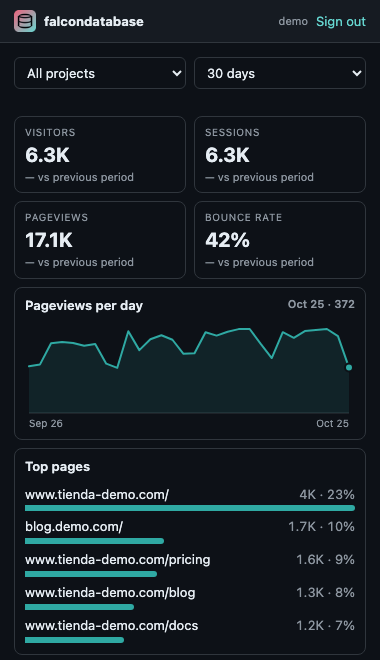
Key indicators
Visitors, sessions, pageviews and bounce rate, compared with the previous period.
Where visits come from
Top pages, sources and countries, for all your projects or just one.
Secure sign-in
Uses your account, with two-step authentication if you enabled it. Changing your password signs the extension out.
Download and unzip
Download the zip above and unzip it. You get a
falcondatabase-extensionfolder.Open the extensions page
Type
chrome://extensionsin the address bar.Turn on developer mode
Use the switch in the top right corner.
Load the folder
Click Load unpacked and choose the
falcondatabase-extensionfolder. Pin it from the puzzle icon so it stays visible.Sign in
Click the icon and sign in with your falcondatabase username and password.
Chrome only installs extensions directly from the Chrome Web Store; until it is published there, it is installed this way. Updates: download the zip again and click the reload button of the extension.